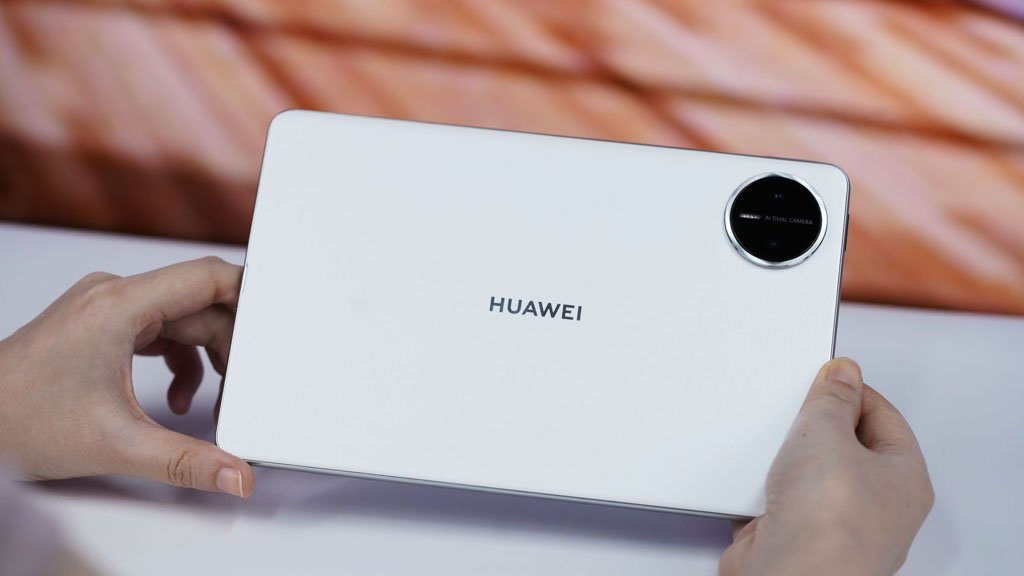
Huawei recently announced the API 23-based HarmonyOS 6 beta testing program, and now it is rolling out the first build of this update to MatePad tablets, introducing smarter and flexible AI features. These add-ons will enhance the productivity aspects.
According to the details, the new beta version is more efficient, smoother, more secure, and more convenient. The company is pushing the build gradually to devices.
In addition, the company’s official team account on Weibo has recently announced new AI features for the Huawei MatePad tablets, particularly for the Mini model.
The company is bringing several flexible multi-window features that will enable users to adjust the window size and position as per their needs. At the same time, it introduces the exclusive Cute Master theme.
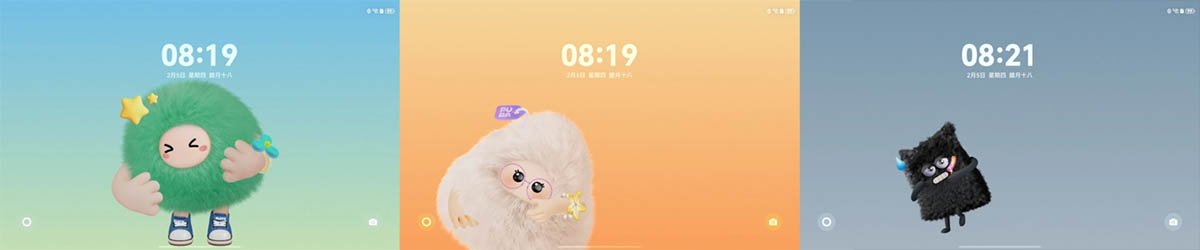
One can go to the Settings app > Home Screen and Personalization > More Themes > Find the Dance Master, and you will observe three fancy themes like Round-faced Silly, Cute Master Jumping, and Cute Master Hehe.

(Image Credits: Huawei)
Users can select any theme and preview its cute effects on the lock screen or home screen. A simple tap on the character will reflect a cute reaction. While plugging the tablet in charger or playing music, the character will show their dance.
Customize button will allow you to change different accessories and fur colors for your pet, creating a unique + exclusive look. Further, you will see exclusive wallpapers for the Year of the Horse. Just open the Themes app and search for “Year of the Horse”. You can check the Window-based features below.

(Image Credits: Huawei)
Quickly Enable Free Window Mode:
- Open the app on your tablet, swipe down from the top right of the screen to access the Control Center, tap Free Window, and the app will automatically enter Free Window Mode.
Window adjustment and movement:
- Scaling: Drag the four corners/edges of the window to freely adjust the aspect ratio to fit reading, typing, video, and other scenarios.
- Move: Long-press the window title bar and drag it to any area of the screen to avoid obscuring the core content.
- Quickly Maximize: Double-click the title bar, or drag the window to the top of the screen to restore full screen with one click.
- Exit Maximized Window: Swipe down from the top of the screen to bring up the window title bar, click the minimize icon on the window title bar, or double-click the maximized window title bar.
Window switching and closing:
- Switch Focus: Click the target window to activate the operation, allowing for seamless multitasking.
- Close a single window: Click the close button in the upper right corner of the window, or swipe up to quickly exit.
- Exit full-screen mode: Pull down the control center again, turn off the multi-window switch, and restore the normal full-screen mode.
(source)
The post Huawei introducing flexible AI features to MatePad tablets appeared first on Huawei Central.