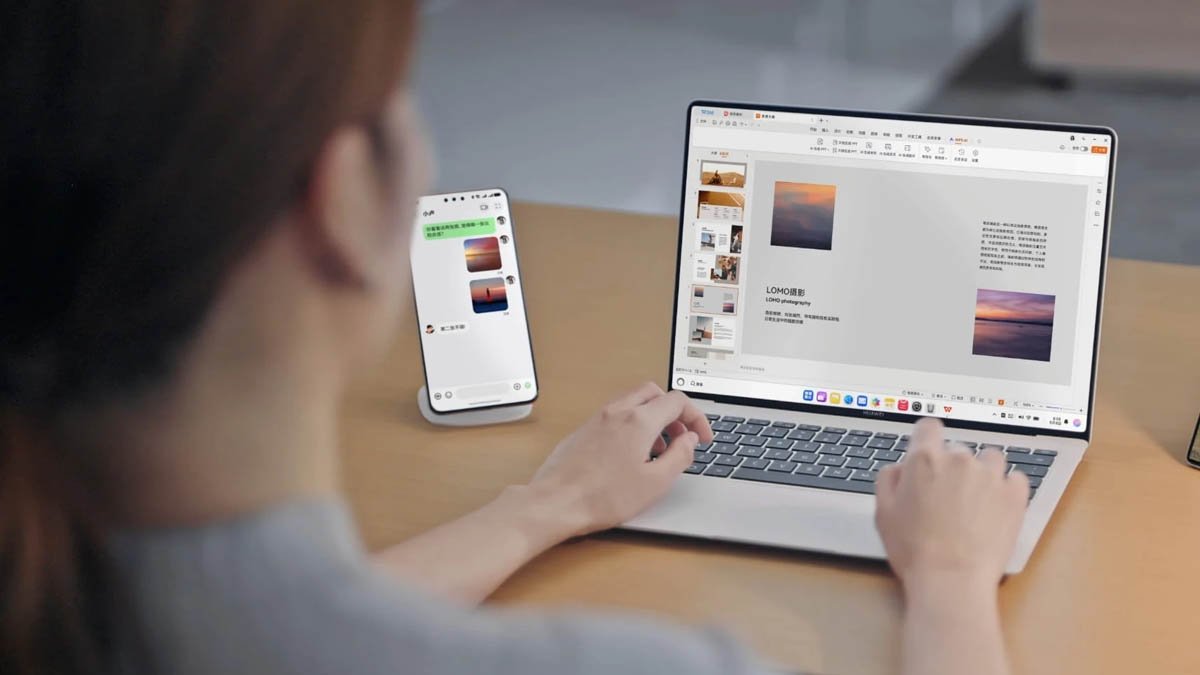
Huawei MateBook Pro, powered by HarmonyOS is getting a new update that brings camera support to the PC. The new capability will enable the device to easily read photos and videos, edit them, or process any kind of information.
Reading photos or videos refers to a method where the PC camera scans the photo or video, barcodes, and QR codes so the notebook can process the relevant details.
In other words, the new camera support will enable the Huawei MateBook Pro PC to easily read the visual data instead of simply capturing videos for calls.
MateBook Pro PC is receiving many new features with HarmonyOS 6.1.0.130 SP15 update. The firmware optimizes several existing features and fixes some issues from the last software build. You can check the complete changelog below.

(Image Credits: Huawei)
System
- Added user tier management capability. Administrators can add or delete regular users and can manage multiple regular users, making multi-user scenarios more secure.
- Supports connecting to a camera to read photos and videos.
- You can remove Recent apps using the HarmonyOS Key. Pressing the HarmonyOS Key will hide recent apps (long-press or right-click the app > delete from recent list).
- Optimized the user experience of Xiaoyi Input Method in extended screen scenarios.
- Optimized the experience of dragging and dropping the screenshot thumbnail after taking a screenshot.
- Optimized the user experience and stability of printers in certain scenarios.
- Optimized printer connection experience; no more pop-up notifications will appear when connecting an already added printer.
- Optimized the display of the “About This Phone” interface in settings.
- Improved overall system stability and performance, providing you with a smoother user experience.
- Fixed the issue of single-application volume settings not working after restarting.
File Management
- Added a “Send to USB drive” option to the right-click menu, and pinned “Rename” to the top, making file management more convenient.
- Now you can disable Frequently used folders in the sidebar (right-click the folder in the sidebar > unpin from “Quick Access”).
- Optimized file search experience and fixed the issue of files on USB drives not being searchable in some scenarios.
- Fixed the issue of file compression failure in some scenarios.
- Fixed the issue of incomplete file display in Huawei Cloud Drive in some scenarios.
- Fixed the issue of shared data failing on connected network neighbor devices after a reboot.
Home Screen
- Added a control center icon to the status bar; clicking it will provide quick access to the control center.
- Supports setting different wallpapers for the desktop and lock screen (Settings > Desktop and Personalization > Wallpaper, or right-click on the image and set it as wallpaper).
- Supports automatically generating desktop icons after application installation.
- Supports showing or hiding status bar icons (Settings > Notifications and Status Bar > Status Bar > Icon Display Management)
Browser
- Supports syncing bookmarks saved in Huawei Browser on Windows PCs (requires logging in with the same Huawei account).
- Optimized the display effect of the camera on some web pages.